

A Guide to ISMRM’s
New  ECHO Abstract Submission Process
for Workshops
Log In to ECHO or Create an Account
ECHO is the new, universal submission site for ISMRM workshops and meetings. You only need to create an account once and you'll be all set for future ISMRM events!
If you've never used the ECHO submission site before, the first step is to create an account.
This user account will persist across years, workshops, and annual meetings. Additionally, it is possible to associate more than one email address with a user account in case you lose access to an institutional or work account.
If you already have an ECHO account, go ahead and log in now. You may skip this first section and go to the "Submit an Abstract" section below.
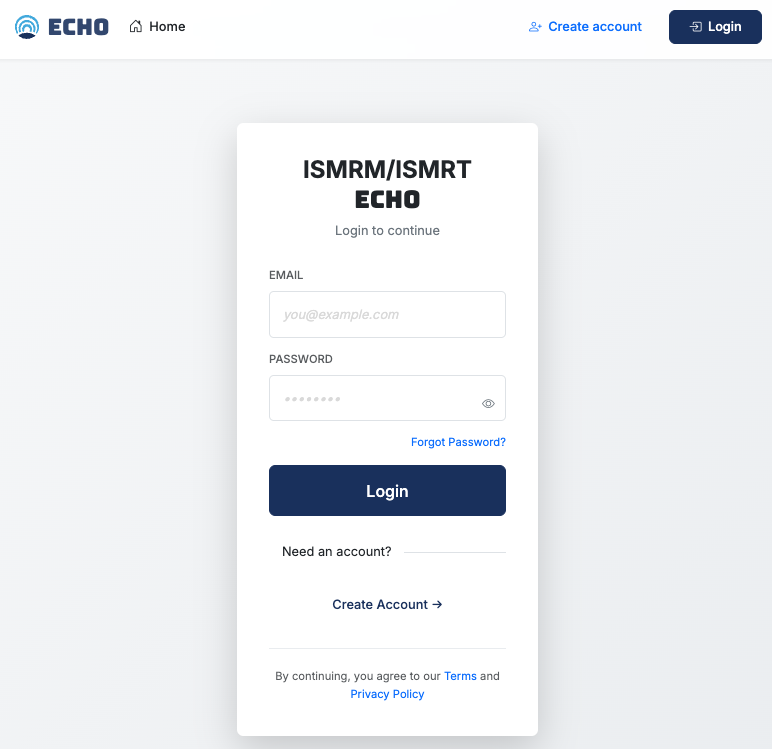
If you already have an account,
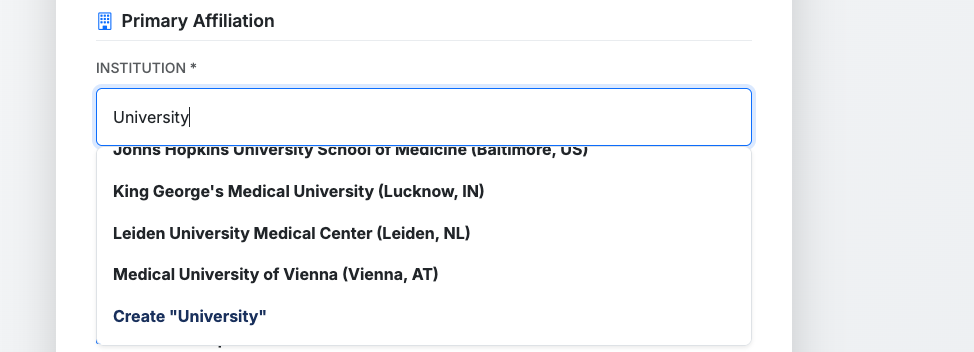
During account creation, you should enter your Primary Affiliation. If your Institution does not appear in the list, you can create it.
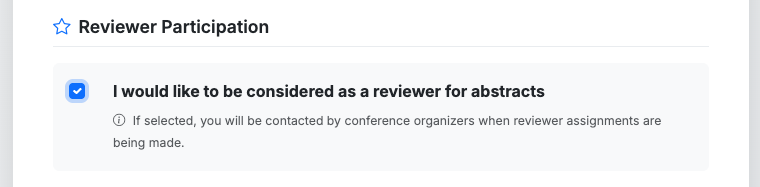
You will also be asked to participate as a Reviewer. Please note that this only applies to Annual Meetings and not to Workshops.
Once your registration is complete, please return to the echo.ismrm.org home page and log in to the system to submit an abstract.
You only need to register for the ECHO system once. Please use the same user account for abstract submissions to workshops and annual meetings.
Note: This account is not connected to your ISMRM/ISMRT membership account. You will be responsible for checking and updating your information each time you submit an abstract.
Submit an Abstract
Note: Many of the images below are from the Annual Meeting submission process.
What you see during the workshop submission process may be slightly different from these examples.
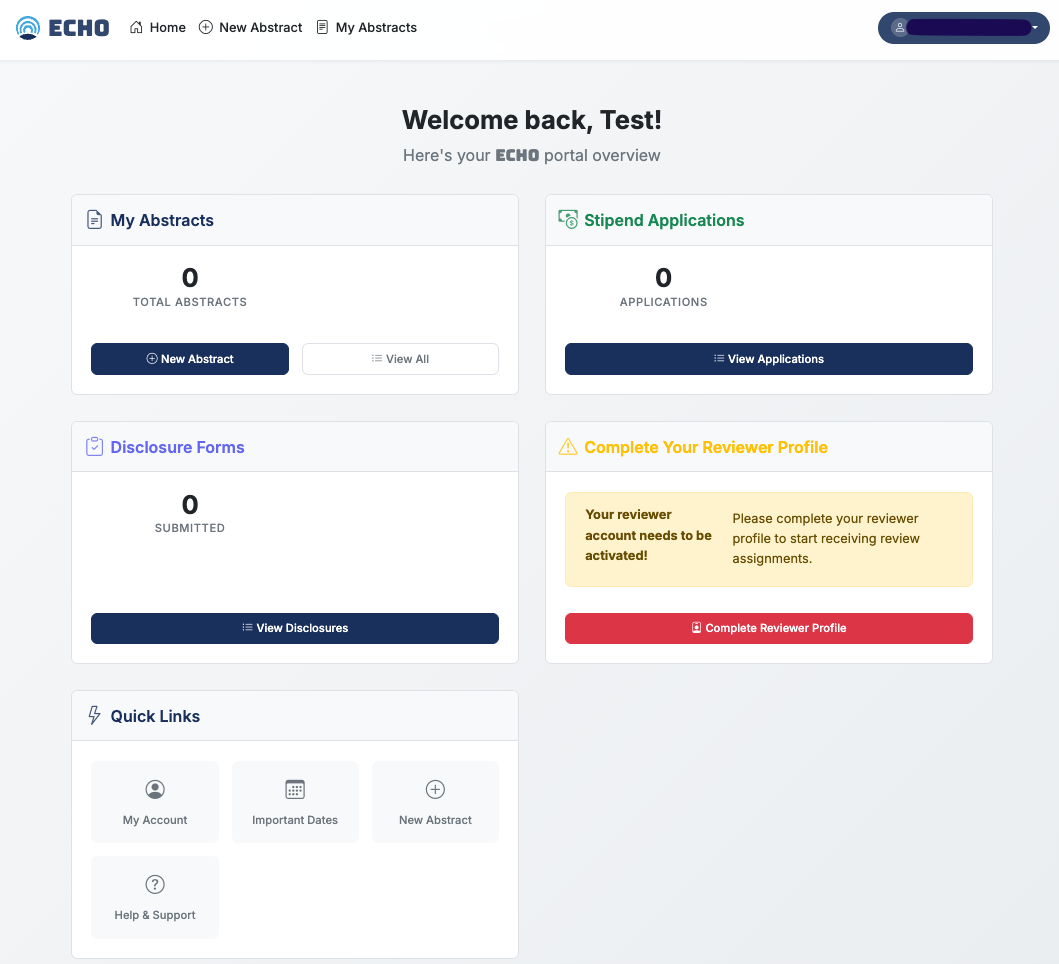
At this point, we recommend that you write and organize your abstract in a common text editor without any formatting. Then, when you have your abstract ready, proceed with these directions.
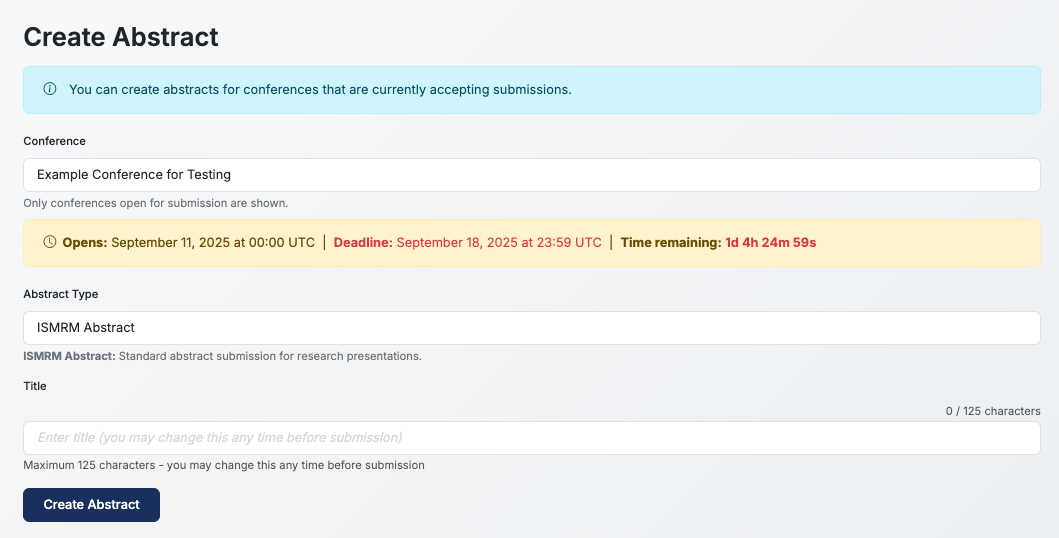
To submit an abstract, select 'New Abstract' under 'My Abstracts' on the ECHO home page (when you are logged in to the system).

Here you can select the conference for abstract submission. For workshops, select the appropriate workshop from the list.

If more than one type of abstract is available for submission to your selected workshop, options will appear under Abstract Type.
Enter your title and select 'Create Abstract'. You may edit your title at any time prior to submission.
Create Your Abstract
On the Edit Abstract page you can revise your title and add the authors. Use the 'Add Author' button to add authors. When authors are added, you can use the buttons on the right side to rearrange the author order, edit an author's details, and delete an author. At this time, it is not possible to have joint first or last authors. Please indicate a Presenting Author who will be shown as the speaker in the conference program.
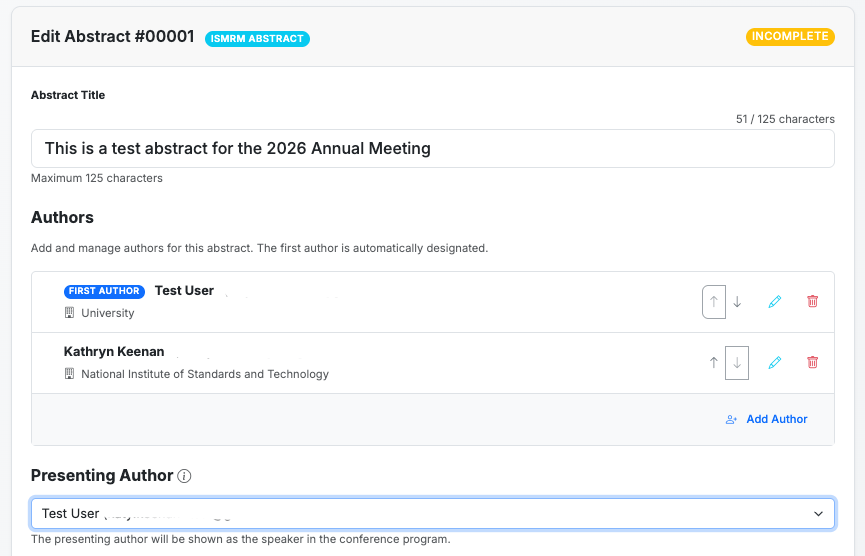
Please note, the system should automatically save your abstract as you work. You can also save your abstract at any time using the 'Save' button at the bottom of the page.
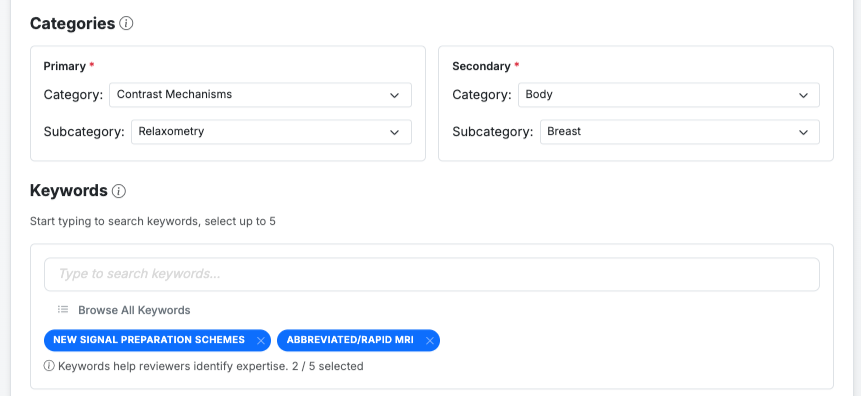
If a workshop utilizes categories and/or keywords, you will be asked to input them here. The workshop website will have more information on any categories or keywords available. Please do not select the same Primary and Secondary Subcategories.
Now add your Impact, Synopsis, and Abstract.
When specific abstract sections are required, the ECHO platform is pre-populated with these sections. Common sections include Introduction, Methods, Results, and Discussion/Conclusion.
Math Text
Within the Content Sections, you can use both inline and display math. These tools can be used to create different type faces (e.g., bold and italics), subscripts, and superscripts. For help with the math text, you can use hostmath.com. When you copy and paste the math text from hostmath, don't forget to include the dollar signs to indicate inline ($[math type]$) or display math ($$[math type]$$). If you need to edit the inline or display math, click on the rendered inline or display math. If you would like to copy the math text, please click on the rendered inline or display math and copy when the text is in the $^$ format.
You can use the math text to create bold and italic text and the superscripts for references. Here is a quick guide:
Superscripts can be used for references $^{1,2,3}$ |
Superscripts can be used for references 1,2,3 |
Subscripts use underscore $T_1$. |
Subscripts use underscore Τ1. |
$\textbf{This makes bold font.}$ |
This makes bold font. |
$\textit{This makes italics.}$ |
This makes italics |
Including References
Citations can be added individually or in bulk. Please include DOIs and/or PMIDs in your citations when available.
DOI formats are
doi:10.xxxx/xxxxx
or
https://doi.org/10.xxxx/xxxxx.
PMID formats are
PMID: 12345678
or
PubMed: 12345678.
Following the Vancouver style of reference citation, we suggest that you number your references using Arabic numerals in the order of appearance in the abstract.

At the end of the abstract, list references numerically in the order in which they were cited in the text. You can add citations in bulk by listing one citation per line.
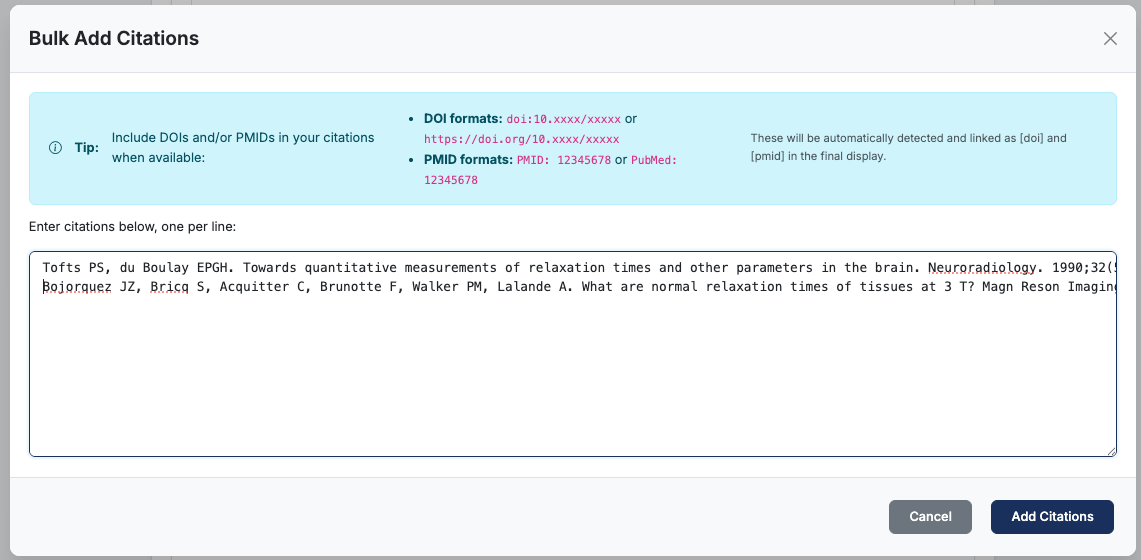
The citations are then listed individually, and if needed, you can rearrange or delete using the action buttons.

Adding Figures & Tables
To add Figures and Tables to your abstract, select Add Figure. Please note, Tables should be included as high-resolution image files.

Select the image file, which can include an animated figure. Please ensure that animated figures are silent/muted or do not contain audio.
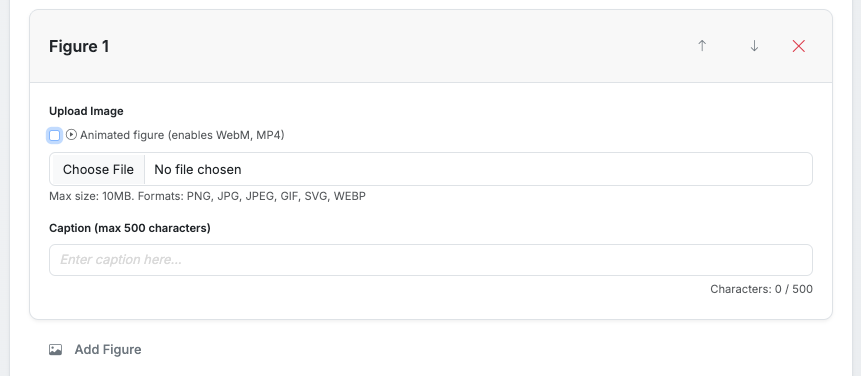
Figure captions are limited to 500 characters. The system automatically indicates the figure numbering when rendering and adds a hyperlink in the abstract text. You can use the buttons on the top right of the Figure menu to change the order of figures or remove a figure.
You are encouraged to upload Institutional or Project Logos. The Institutional/Project Logos are limited to 1 MB and a maximum dimension of 300×300. These specifications are required for optimal view in the conference program.
Submitting Your Abstract
Once you have completed all sections of the Abstract, you are ready to ‘Preview & Submit’.

This takes you to the Abstract Review Before Submission. Please review the Checklist and read the Submission Rules carefully before submitting your abstract. Until you Submit your abstract, the status will be ‘Incomplete’.
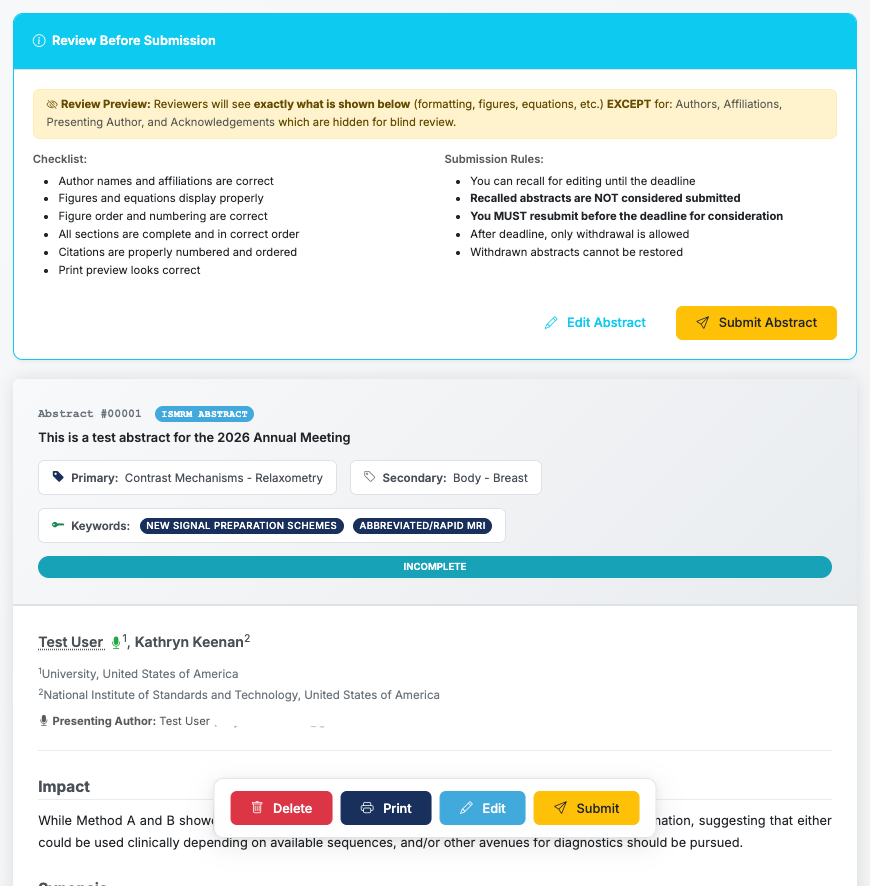
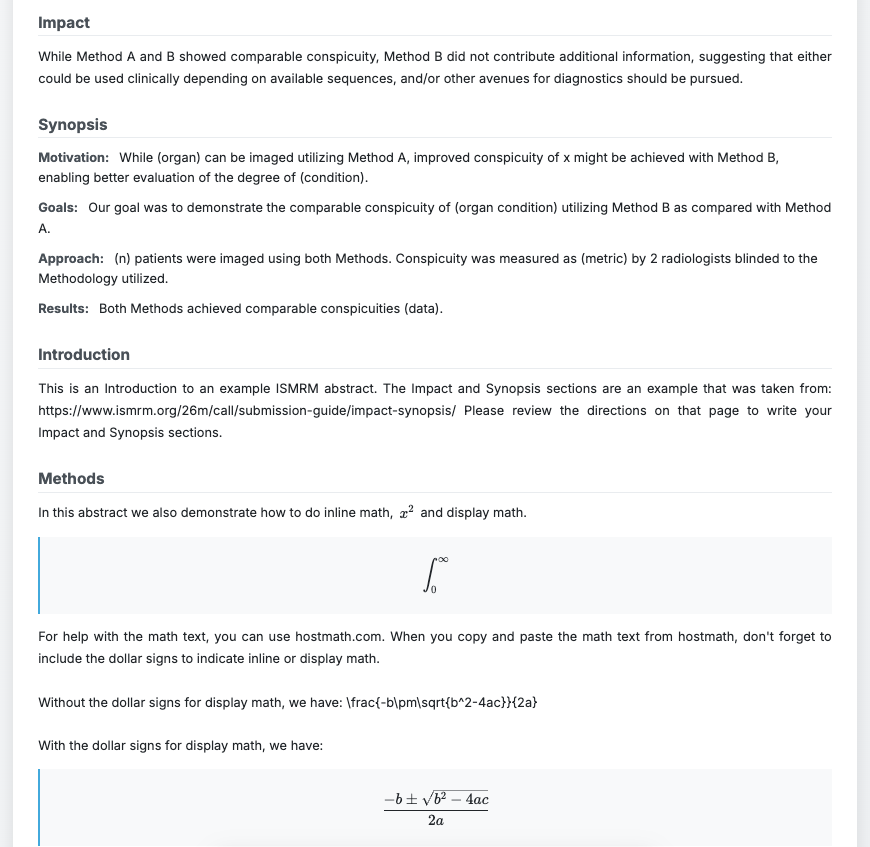
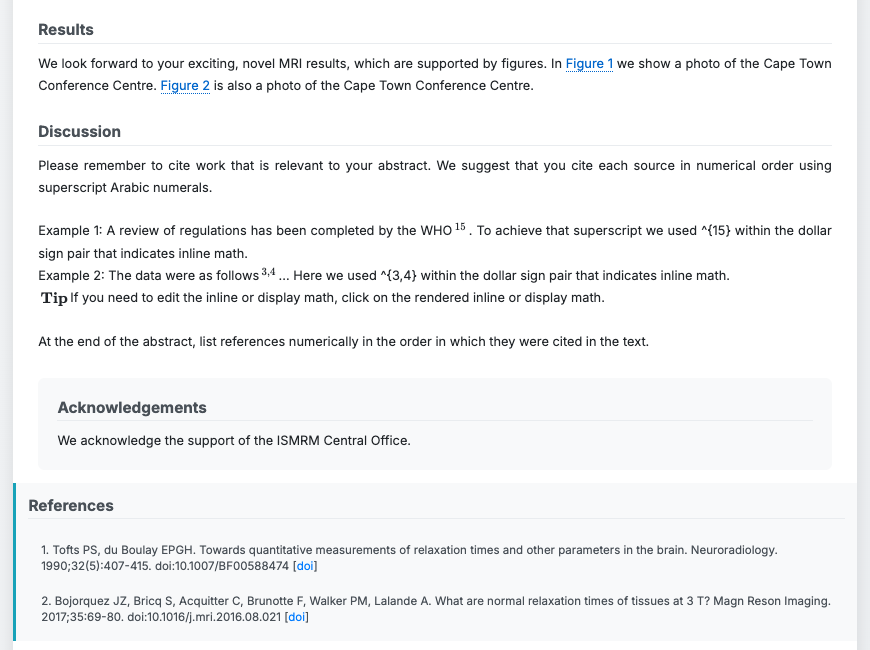
If you need to revise, you can return to edit your abstract by selecting the ‘Edit’ button. You can preview the pdf rendering of your abstract and save a copy by selecting the ‘Print’ button. When you are ready, select the ‘Submit’ button. Then, you will need to complete the Abstract Submission Requirements, including your electronic signature to submit your abstract.
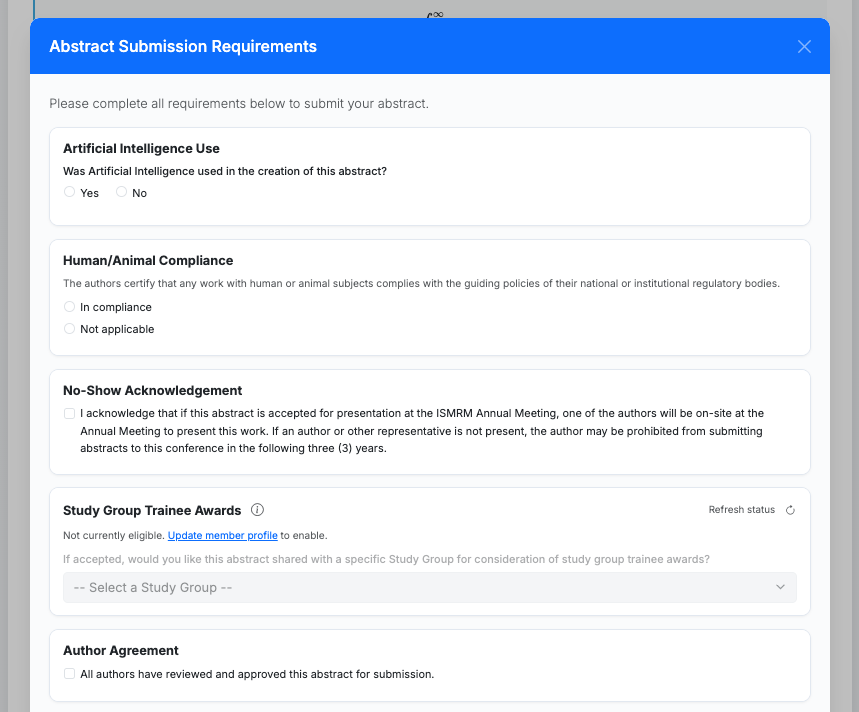
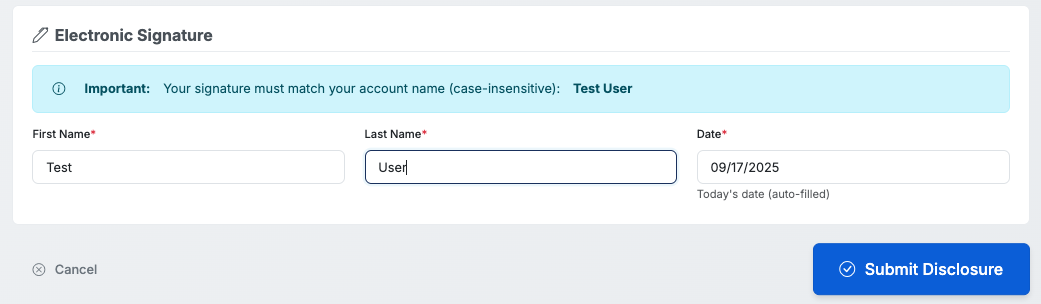
Upon submission of the abstract, a confirmation email is sent to the submitting author and all co-authors. Once you submit your abstract, you will be directed to complete your disclosures.
Abstract Recall
If needed, you can recall your abstract during the Abstract Submission window. Once Abstract Submission closes, you cannot Recall an abstract. You may Withdraw an abstract once Abstract Submission closes.
To Recall an abstract, navigate to ‘My Abstracts’ and select ‘Recall’.
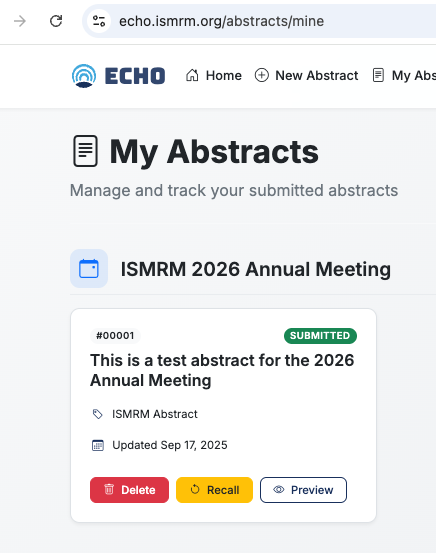
The system will warn you about the actions of Recall. Your abstract will be reverted to incomplete status, and you WILL NEED TO SUBMIT IT AGAIN. The Recall process un-submits your abstract.
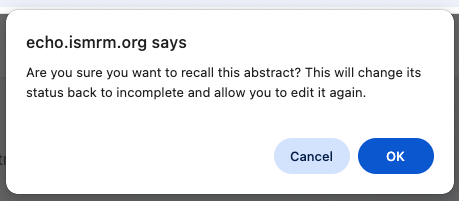
After selecting ‘OK’, you will select ‘Edit’ from the ‘My Abstracts’ page. Now you can edit your abstract. PLEASE REMEMBER TO SUBMIT THE ABSTRACT AGAIN.
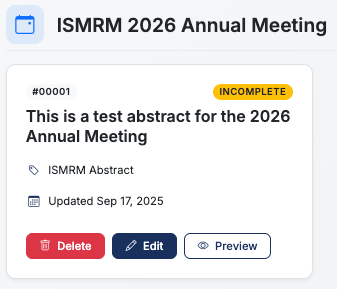
Complete Your Disclosures
After submitting your abstract, you will be directed to complete your Disclosure Form. Please carefully read and complete the form.
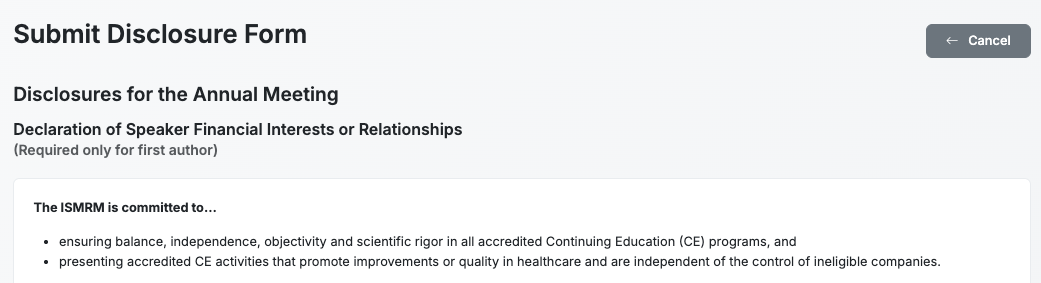
At the end of the form you will need to complete your electronic signature.
The completed form will display on your Disclosure Forms menu. You can Print the form to save it.

You should also receive an email confirmation that the form has been successfully submitted.
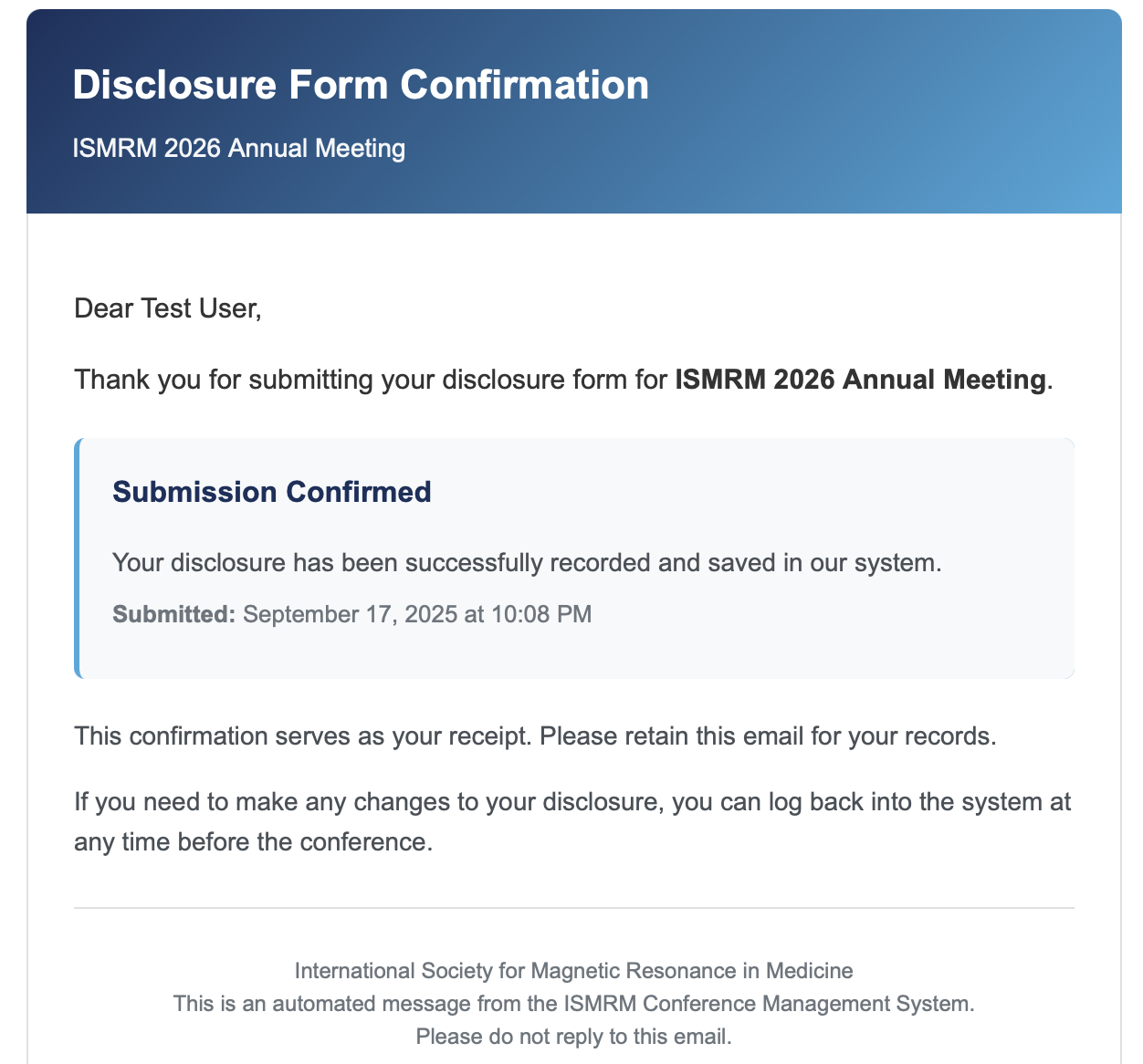
Thank you for signing up for ECHO and submitting an abstract!